
Import Orders from Files
Upload HL7, PDF, Word, Excel, text and image files to create orders.
Instead of typing an order in, you can upload the documents you already have. Select Add/Import on the Order History page and use the Upload Files pane on the left.
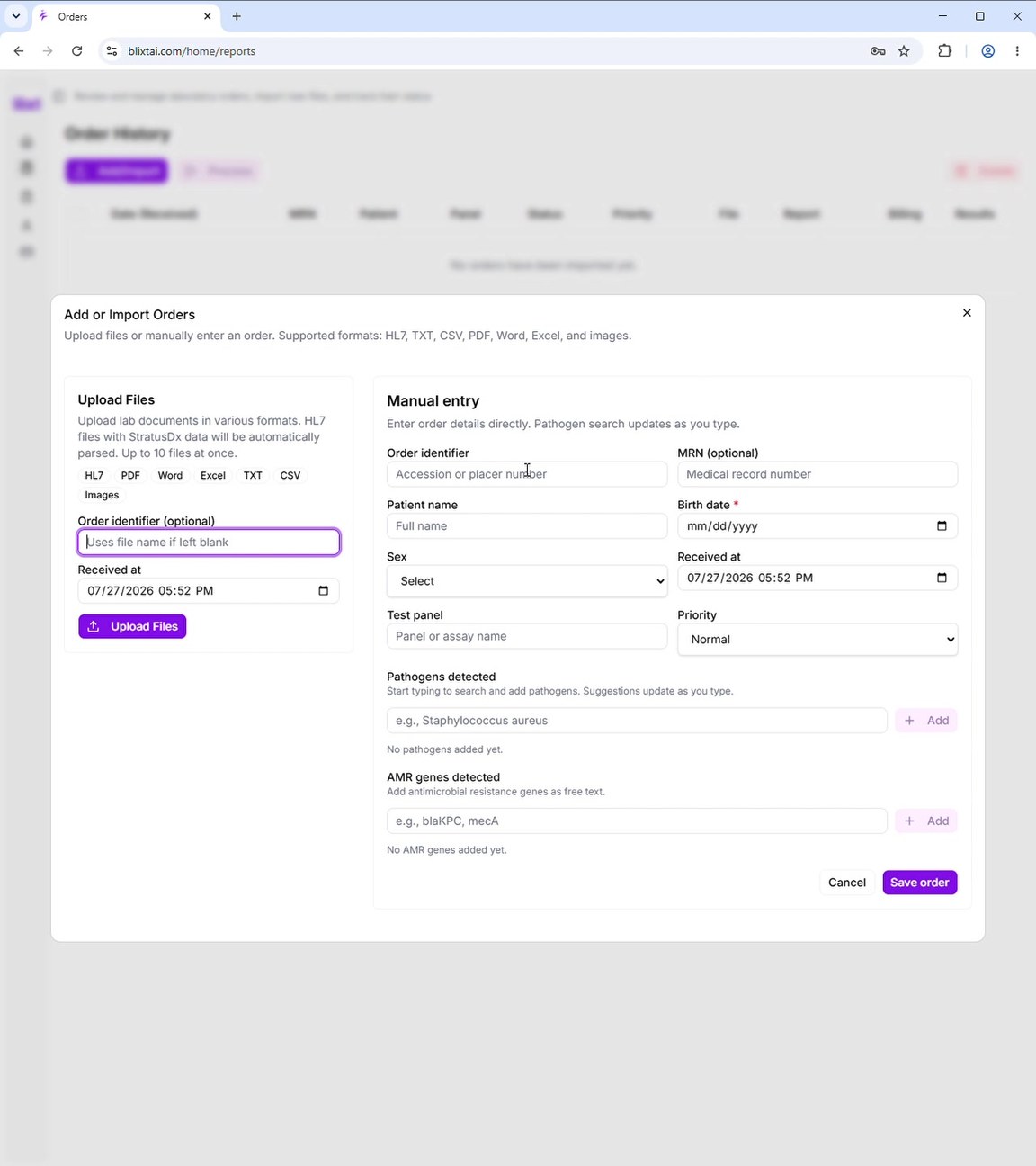
Supported formats
| Format | Extensions |
|---|---|
| HL7 | .hl7, .txt |
| Text and spreadsheets | .txt, .csv, .xls, .xlsx |
| Documents | .pdf, .doc, .docx |
| Images | .jpg, .jpeg, .png |
You can upload up to 10 files at once.
The fields
- Order identifier — optional. Leave it blank and the file name is used instead. If you upload several files, give them their identifiers afterwards rather than here.
- Received at — pre-filled with the current date and time. Correct it if the specimen was received earlier.
What happens to each file
HL7 files are inspected for a valid message. Recognised HL7 from a supported instrument is parsed automatically, so the patient, panel and results are filled in for you. If the message carries an embedded PDF, it is extracted and attached to the order — you will see a note saying so.
Every other format creates an order with the file attached as its source document. The file is stored and viewable from the File column, but the patient details and results are not read out of it — add those yourself using the Results column before processing.
While it runs
A progress panel shows which file is being handled (Processing file 2 of 5), the current stage — Uploading…, Parsing HL7… or Saving… — and a progress bar. When it finishes you get a summary of how many orders were created.
After uploading
Orders created from a non-HL7 file start at status Pending, because their results still have to be filled in. Open the Results cell on the row, add the pathogens and resistance genes, then select the order and choose Process. See Generate a Test Report.